Setting up a Git Bash alias in Windows
Date:
Here's a quick tutorial on how to work around an annoying issue on Windows.
Suppose that I have Git Bash installed on Windows that I got with my install of Git, and that I like to use to run various shell scripts. The problem there, is that if I also have installed WSL, then I have approximately 0 idea how to run Git Bash from a PowerShell terminal session, for example, if a development tool has a terminal tab and opens that directly, or if I'm in a regular terminal session and just want to run a Bash script, BUT maintain access to the tooling I have on the system directly, NOT inside of WSL.
In this case, opening bash opens WSL, not Git Bash:
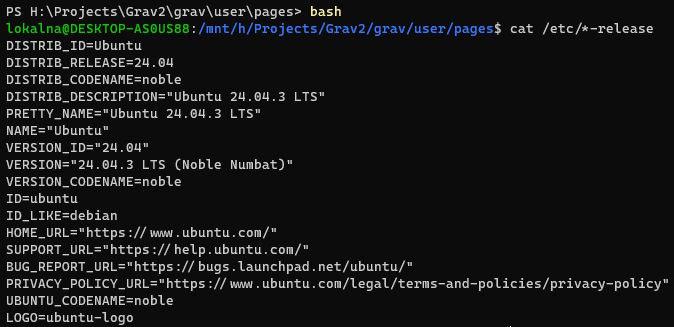
At the same time, maybe I don't want to mess around and overwrite the bash behavior, so I need a new alias. Here's how we can do that.
First up, we make sure that there is a PowerShell profile set up (but don't overwrite it if it already exists) and open it for editing:
New-Item -ItemType File -Path $PROFILE
notepad $PROFILE
There, we add our new alias:
function gitbash { & 'C:\Program Files\Git\bin\bash.exe' @args }Then we save the file, and reload the profile (needs to be done once, no restart of the whole PC necessary):
. $PROFILEOnce done, now you can open Git Bash with the aliased command:
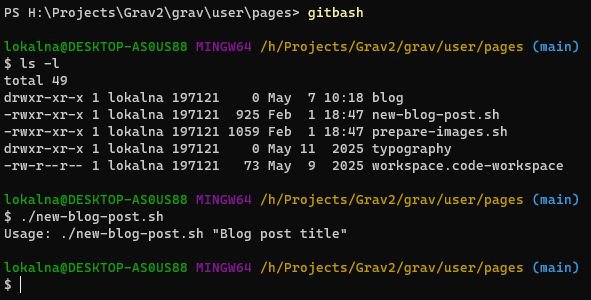
gitbashHere's what it looks like when you run it:
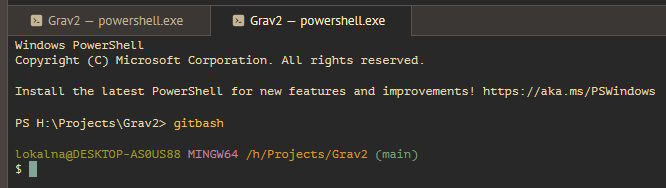
This will also work in any terminal sessions inside tools, for example Zed, which I also wrote about today, but which doesn't seem to support easy terminal switching on a per-tab basis:
Not the longest blog post, but I'm writing this down here, because I can guarantee that I'll forget what the exact commands and syntax was for all this. Either way, at least here's something annoying about my setup out of the way!
Other posts: « Next Previous »