Setting up a Git Bash alias in Windows
Here's a quick tutorial on how to work around an annoying issue on Windows.
Suppose that I have Git Bash installed on Windows that I got with my install of Git, and that I like to use to run various shell scripts. The problem there, is that if I also have installed WSL, then I have approximately 0 idea how to run Git Bash from a PowerShell terminal session, for example, if a development tool has a terminal tab and opens that directly, or if I'm in a regular terminal session and just want to run a Bash script, BUT maintain access to the tooling I have on the system directly, NOT inside of WSL.
In this case, opening bash opens WSL, not Git Bash:
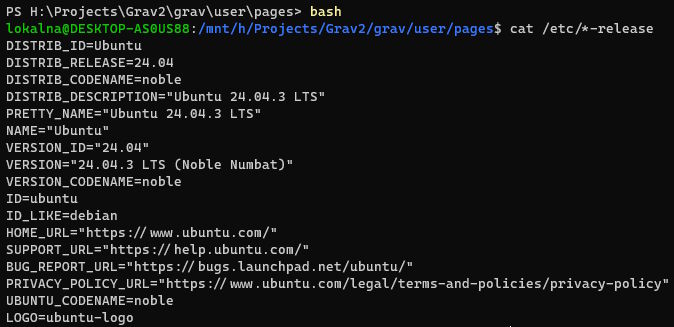
At the same time, maybe I don't want to mess around and overwrite the bash behavior, so I need a new alias. Here's how we can do that.
First up, we make sure that there is a PowerShell profile set up (but don't overwrite it if it already exists) and open it for editing:
New-Item -ItemType File -Path $PROFILE
notepad $PROFILE
There, we add our new alias:
function gitbash { & 'C:\Program Files\Git\bin\bash.exe' @args }
Then we save the file, and reload the profile (needs to be done once, no restart of the whole PC necessary):
. $PROFILE
Once done, now you can open Git Bash with the aliased command:
gitbash
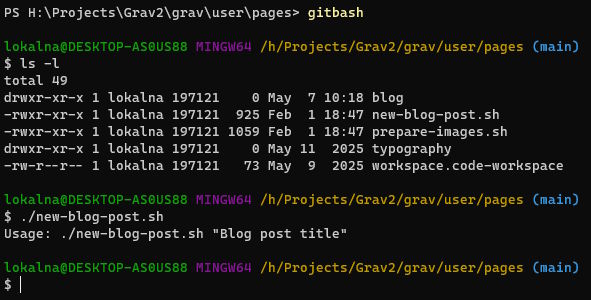
Here's what it looks like when you run it:
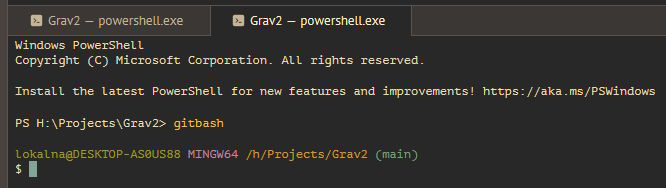
This will also work in any terminal sessions inside tools, for example Zed, which I also wrote about today, but which doesn't seem to support easy terminal switching on a per-tab basis:
Not the longest blog post, but I'm writing this down here, because I can guarantee that I'll forget what the exact commands and syntax was for all this. Either way, at least here's something annoying about my setup out of the way!